
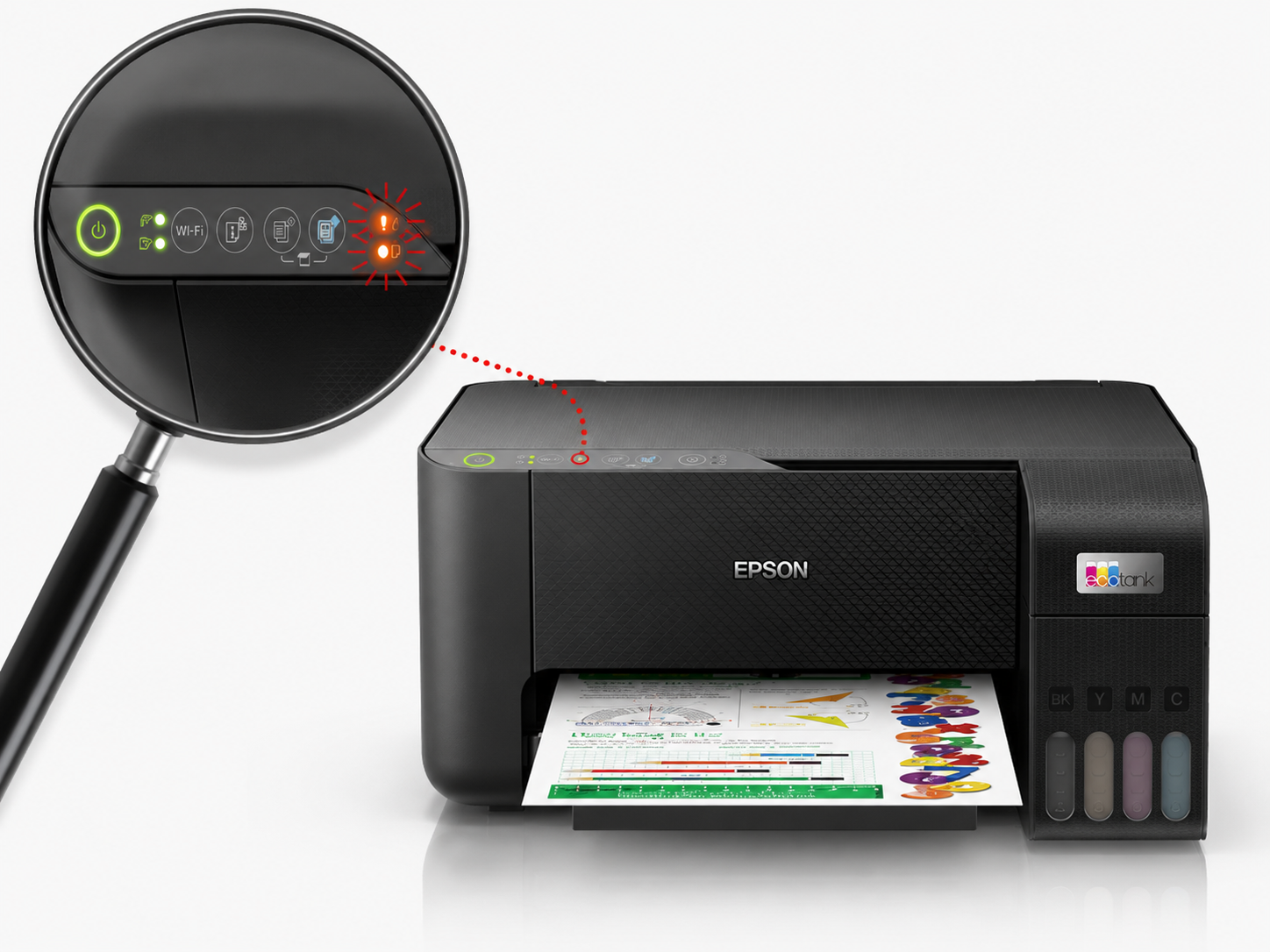
Epson EcoTank printers such as the Epson L3250, L3210, L3150, L3110, L3260, L3270 and similar models are popular thanks to their low printing cost. Instead of ordinary cartridges they use built-in ink tanks refilled from bottles. That is exactly why, sooner or later, owners of these printers end up asking what the waste ink pad is and why it brings the printer to a halt.
But these printers have one trait many owners only discover after a few years of use: the device can suddenly stop printing and display a maintenance message. Often the cause is not the ink, the printhead or a printer fault. The problem may lie in the so-called waste ink pad — the system that collects used ink.
📌 In short: if your Epson L3250 won’t print, shows a maintenance message or blinks the paper and ink lights while the tanks still hold ink — the waste ink pad is most likely full. Many Epson models have a replaceable waste ink container that can simply be swapped; compact models like the L3250 have the pads inside the case and need servicing. Just resetting the error is not enough. Book a diagnosis at A-Tahm →
In this article:
- what the waste ink pad is and where it sits;
- why the printer locks up when the waste ink pad is full;
- whether you can reset the error yourself;
- how to tell that the waste ink pad is to blame;
- which Epson models can run into this problem;
- what to do when the maintenance message is already on screen.
What is the “waste ink pad” in the Epson L3250?
The waste ink pad usually refers to the absorbent pads inside the printer. They soak up ink that never reaches the paper.
Used ink is produced not only while printing. It also enters the collection system during:
- the printer’s initial filling and setup;
- printhead cleaning;
- deep cleaning, i.e. Power Cleaning;
- the device’s automatic maintenance;
- borderless photo printing;
- long-term use of the printer.
In the Epson L3250 and similar models this ink is collected in absorbent pads inside the case. Over time they gradually become saturated.
There are two types of waste ink system: a replaceable container or internal pads
Waste ink collection is inherent to all inkjet printers — a general description of the technology can be found in the article on inkjet printing.
Almost all Epson inkjets — EcoTank (L series), office WorkForce (WF) and SureColor photo printers alike — use a used-ink collection system. But it is engineered differently, and that determines how easy it is to maintain.
1. A replaceable waste ink container (maintenance box). On many models the waste ink pad sits in a separate replaceable container that can be bought and swapped yourself or at a service centre. You’ll find these containers in our Maintenance kits section. For example:
- Epson T04D000 — 13 € (e.g. L4000/L6000 series);
- Epson T04D100 — 16 € (e.g. L14150, L15150, ET-16600);
- Epson C12C934591 — 39 €;
- Epson T6715 — 34 € and Epson T6714 — 67 €;
- Epson SureColor (C13S210057) — 59 €.
After the new container is installed, the maintenance counter is reset and the printer prints again. ⚠️ It pays to double-check the exact “model ↔ container” match before buying — write or call us and we’ll help pick the right spare part.
2. Internal absorbent pads. Compact home models, including the Epson L3250, L3210, L3150 and L3110, often have no separate replaceable container — the pads sit inside the case. Servicing them means opening the printer up, so this work is safer left to a service centre.
Why does the printer lock up when the waste ink pad is full?
The printer cannot measure the actual amount of ink in the waste ink pad. Instead it keeps a software maintenance counter.
When the counter reaches its set limit, the printer may show a message along these lines:
- “The printer requires maintenance”;
- “The waste ink pad is nearing the end of its service life”;
- “Ink pad is at the end of its service life”;
- “Contact a service centre”.
On the Epson L3250 the paper and ink lights may blink together when this problem occurs. Epson notes that this means the waste ink pad’s service life limit is approaching or has been reached.
The printer may then stop printing entirely, even when the tanks hold plenty of ink and the printhead works fine.
Can the error simply be reset?
Technically the maintenance counter can be reset, but a software-only reset without replacing or servicing the pads is not the right thing to do.
If the pads inside the printer really are oversaturated, used ink can start leaking inside the case. It can foul the mechanics, cables, electronics, your desk or the floor.
That is why the correct solution has two parts:
- Inspecting the absorbent pads and replacing or servicing them.
- Resetting the maintenance counter after the work is done.
Epson notes that when the waste ink pad’s service life limit is reached, the printer stops printing and requires a visit to a service centre.
⚠️ Important: at A-Tahm we don’t do “empty” counter resets. First we inspect and service the ink collection system, and only then reset the counter — so used ink never seeps into the printer. Book a diagnosis →
Can you replace the waste ink pad yourself?
In most home-use Epson EcoTank models the waste ink pad is not a user-replaceable part. Reaching it means taking the printer’s case apart.
During such work it is important to:
- avoid damaging the plastic clips;
- disconnect and reconnect the tubes correctly;
- not spill the used ink;
- clean the soiled spots inside the case;
- fit new pads or service the system properly;
- reset the counter only after the replacement.
Epson likewise notes that saturated waste ink pads are not normally a part the user should replace themselves. For most owners it is therefore safer to turn to a service centre.
Why does the waste ink pad fill up faster than expected?
The fill rate doesn’t depend only on the number of printed pages. The pad can fill faster if:
- the printer runs printhead cleaning often;
- the device sat idle for a long time and then needed several cleanings;
- deep cleaning was run regularly;
- borderless photos were printed often;
- non-original ink causing nozzle problems was used;
- the printer is constantly switched on and off;
- printing is rare, with long idle spells in between.
Leaving the printer unused for a long time is especially harmful. Ink can dry in the printhead, after which the user runs one cleaning after another. Every such procedure burns ink and loads the used-ink collection system.
Why shouldn’t you clean the printhead too often?
An ordinary printhead clean does sometimes help when the nozzle check shows gaps. But several cleanings in a row can backfire. They:
- consume ink in large quantities;
- fill up the waste ink pad;
- don’t always clear a heavy clog;
- increase the risk of a maintenance-counter lockout.
For the Epson L3250, Epson recommends using printhead cleaning via the menu or maintenance button, but not running it endlessly back to back. If quality doesn’t improve after one or two ordinary cleanings, it is worth stopping and getting a diagnosis.
How can you tell the problem really is the waste ink pad?
A waste ink pad problem is usually indicated by these signs:
- the printer has stopped printing completely;
- the tanks still hold ink;
- a maintenance message appears on the computer screen;
- the paper and ink lights blink together;
- the printer suggests contacting a service centre;
- the device won’t start printing even after a restart.
This differs from a clogged printhead. With a clog the printer usually prints, but pages come out streaked, individual colours drop out or the text is pale. With an oversaturated waste ink pad the device often refuses to start printing at all.
Which Epson models can run into this problem?
The problem is not unique to the Epson L3250. It occurs on many Epson EcoTank inkjets, including these models:
- Epson L3110;
- Epson L3150;
- Epson L3151;
- Epson L3210;
- Epson L3250;
- Epson L3251;
- Epson L3256;
- Epson L3260;
- Epson L3270;
- Epson L4150;
- Epson L4160;
- Epson L5190.
The specific construction may differ, but the principle is the same: during printer maintenance part of the ink goes into the used-ink collection system. For models with a replaceable container you can buy one in the Maintenance kits section; models with internal pads (L3110–L3260) need servicing at a workshop. Not sure what fits your model? Ask us.
How to extend the life of an Epson EcoTank?
To run into printhead clogs and waste ink pad saturation less often, a few rules are worth following:
- print at least a couple of pages every 1–2 weeks;
- don’t leave the printer idle for months;
- use suitable ink;
- don’t run deep cleaning without need;
- don’t run several printhead cleanings in a row;
- switch the printer off properly with the button, don’t pull the plug from the wall;
- when streaks appear, print a nozzle check first rather than launching several cleanings straight away.
Regular light printing is usually better for an inkjet than rare heavy sessions after a long standstill.
What to do when the Epson L3250 already shows the maintenance error?
Don’t keep restarting the printer or cleaning the printhead over and over. That won’t fix an oversaturated waste ink pad.
The right sequence of steps:
- Write down the exact error message.
- Check the printer model.
- Don’t run any further deep cleanings.
- Turn to a service centre to have the ink collection system inspected and replaced or serviced.
- After servicing, have the counter reset properly.
Epson L3250 repair at A-Tahm
When the Epson L3250’s waste ink pad is full, resetting the counter alone is not enough — the waste ink pad needs to be inspected and replaced if necessary. We take the printer in for diagnosis, tell you honestly whether the repair is worth it, and do the work so the device keeps working.
A-Tahm performs diagnosis and repair of Epson inkjet printers, including the Epson L3250 and similar EcoTank models.
We can establish whether the fault is down to a saturated waste ink pad, a clogged printhead, an ink system failure or something else. For many models we supply and install the replaceable waste ink container; on models with internal pads we do the servicing, case disassembly included. After the work we reset the counter properly and verify printing.
If your Epson L3250 has stopped printing, shows a maintenance message or blinks the paper and ink lights, it pays not to put the diagnosis off. The sooner the problem is fixed, the smaller the risk of used ink fouling the printer’s internals.
How it works:
- Describe the problem and the model — by phone on +372 5 15 15 20 or via the web form.
- The technician runs a diagnosis (the diagnosis fee is counted into the repair price if you approve the work).
- We replace/service the waste ink pad, reset the counter properly and verify printing.
🔧 Epson L3250 asking for maintenance? A-Tahm in Tallinn will check the printer, service the ink collection system and get it working again.
📞 +372 5 15 15 20 · ✉ info@tahm.ee · 📍 Aedvilja 4, Tallinn · 🕘 Mon–Fri 9:00–17:00
👉 Book an Epson diagnosis →
If a repair doesn’t make sense (an old device, for example), an office might consider printer rental or a maintenance contract instead.
Frequently asked questions
What does the blinking of the paper and ink lights on the Epson L3250 mean?
Most often it is a sign that the waste ink pad’s service life is ending or has been reached. The printer may stop printing even with full ink tanks.
Can I just reset the counter and keep printing?
Technically the counter does reset, but without servicing the pads it is risky: oversaturated pads can leak inside the case. The right way is to service or replace the pads first and only then reset the counter.
How do I tell a full pad from a clogged printhead?
With a clogged printhead the printer prints, but with streaks and missing colours. With a saturated waste ink pad the printer usually won’t start printing at all and asks for maintenance.
How long does the waste ink pad last in an Epson EcoTank?
It depends on how the printer is used. Frequent cleanings, borderless printing and long idle spells followed by cleanings fill it faster than ordinary document printing.
Can I buy an Epson waste ink pad (container)?
For many models — yes, it is a replaceable container (maintenance box) available in the Maintenance kits section. On compact models like the L3250 the pads sit inside the case — those are serviced at a workshop. Check compatibility before buying.
Do you repair the Epson L3250 in Tallinn?
Yes. A-Tahm performs Epson EcoTank diagnosis and repair, including servicing of the used-ink collection system. Get in touch on +372 5 15 15 20 or via the web form.