
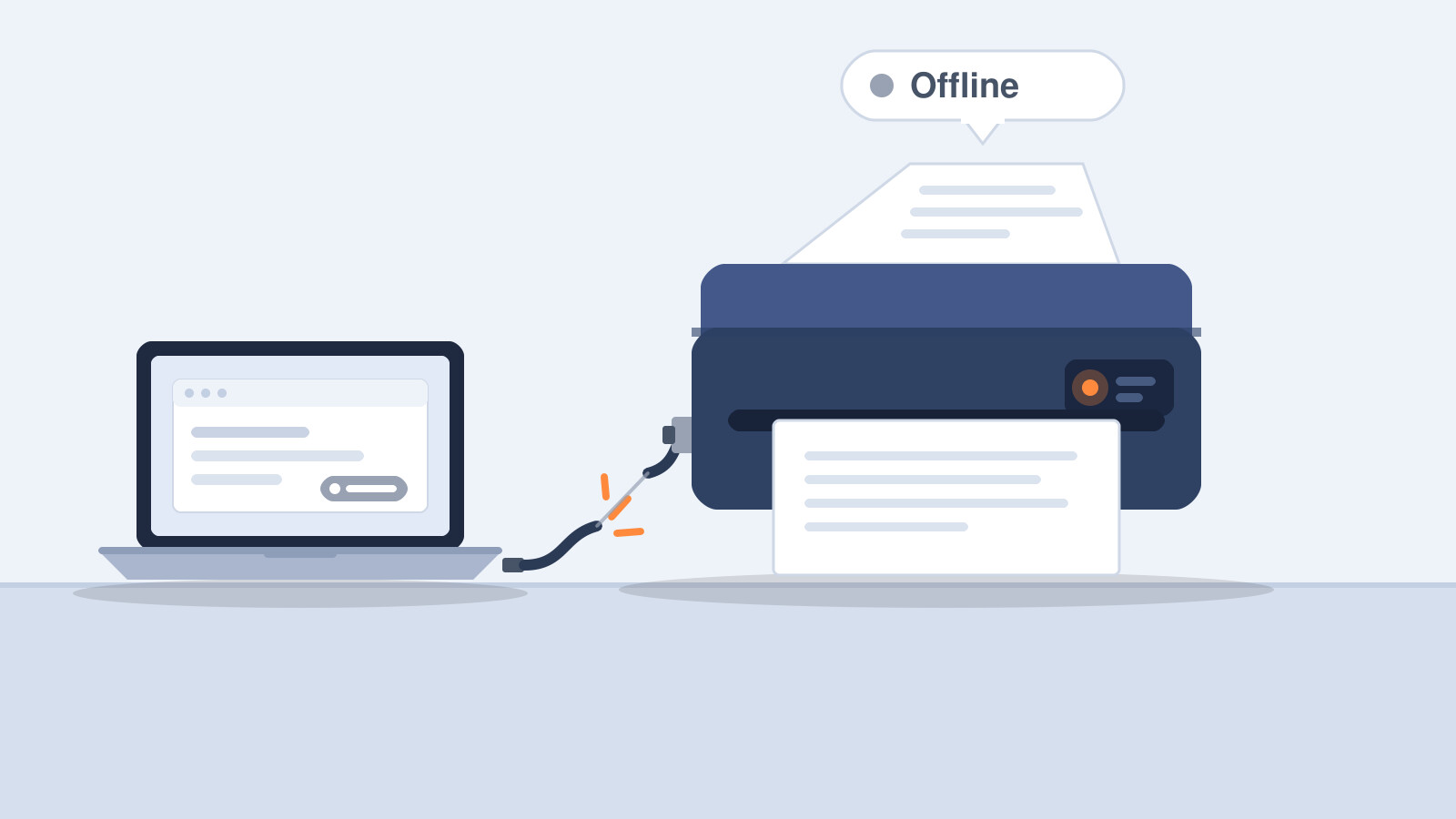
In the morning everything prints fine. After lunch you press Print and nothing happens — Windows says the printer is offline. You switch the printer off and on and it works again. A couple of hours later the same thing happens.
If the printer is connected by a USB cable, the cause is almost always a power-saving setting — in the computer, in the printer itself, or in both — not a broken printer. Below is the checklist we give our own customers. Menu names are given in English, as in the official Windows and manufacturer guides; other Windows languages use similar but not always identical names.
What it looks like and why it happens
- the printer is in the list, but its name is greyed out and the status is offline;
- the job sits in the print queue and does not move;
- the printer prints again only after switching it off and on or re-plugging the USB cable;
- the problem appears most often in the morning, after the computer wakes from sleep, or after a long idle period.
Windows marks a printer as offline when it cannot reach it at that moment. The cause can be in three places:
- the computer — Windows switches off a USB port or hub to save power and does not always switch it back on in time;
- the printer — goes into sleep mode or switches itself off completely, and the computer cannot wake it by itself;
- the connection — a cable, hub or port where the contact is lost.
A driver or print-queue problem can also produce the same offline status — more on that below.
Start with one minute: a quick check
- Look at the printer display or indicator lights — is there an error (paper, cartridge, cover)? Windows can show offline even when the printer is just waiting for an error to be cleared.
- Switch the printer off, unplug the power cable, wait 30 seconds, plug it back in and switch the printer on — Microsoft recommends the same.
- Unplug the USB cable and plug it back in, preferably straight into a port on the computer.
- Print a test page.
If that helped but the problem comes back, it is worth finding the cause instead of treating the symptom. Read on.
Windows settings: USB power saving
These three settings solve most cases of a USB printer “falling asleep”. Change them one at a time and check printing after each change, ideally after a long idle period.
1. “USB selective suspend setting” in the power plan
- Open “Control Panel” → “Power Options” (or type “Edit power plan” into the Start menu search).
- Next to the active power plan choose “Change plan settings” → “Change advanced power settings”.
- Expand “USB settings” → “USB selective suspend setting” and set it to “Disabled” (on a laptop both “On battery” and “Plugged in”, on a desktop “Plugged in”).
- Click “OK”.
2. “USB Root Hub” power management in Device Manager
- Right-click the Start button → “Device Manager”.
- Expand “Universal Serial Bus controllers” and double-click the first “USB Root Hub” entry.
- On the “Power Management” tab clear the “Allow the computer to turn off this device to save power” check box and click “OK”.
- Repeat for every “USB Root Hub” entry.
3. “Fast startup” (if the problem appears after the computer starts)
Fast startup does not shut the computer down completely, and sometimes USB devices do not come back cleanly afterwards. If the printer goes offline right after the first start in the morning, try: “Control Panel” → “Power Options” → “Choose what the power buttons do” → “Change settings that are currently unavailable” → clear the “Turn on fast startup (recommended)” check box.
Printer port, print queue and the offline flag
The offline flag and the queue
- Windows 10: “Start” → “Settings” → “Devices” → “Printers & scanners” → select the printer → “Open queue” → “Printer” menu → clear “Use Printer Offline” and “Pause Printing”.
- Windows 11: “Start” → “Settings” → “Bluetooth & devices” → “Printers & scanners” → select the printer → “Open print queue”. If jobs are stuck, choose “Cancel all” from the three-dots menu (“…”).
If the queue is stuck, restart the print service: type “services” in the Start menu search, open “Services”, find “Print Spooler”, right-click → “Restart”.
Port
Open the printer properties (“Printers & scanners” → printer → “Printer properties”) → “Ports” tab. The check mark must be on a USB port (usually “USB001” or similar; some drivers use “Virtual printer port for USB”). If the printer has ever been on the network, a WSD or IP port may still be selected — it cannot work with a USB cable. Exact names depend on the driver.
Driver
The universal Windows driver prints, but drops many settings and can be more temperamental about the connection. Install the printer manufacturer’s own driver from its website. If the printer is already added: “Printers & scanners” → printer → “Remove” (Windows 10: “Remove device”), then “Add device” (Windows 10: “Add a printer or scanner”) — the printer must be switched on and connected.
Settings in the printer itself: sleep mode and auto-off
Most printers go to “sleep” after a few minutes, and many switch themselves completely off after a few hours. A printer that has switched off completely cannot be woken by the computer — you have to press the power button. The settings and their names depend on the model; here are examples from the manufacturers’ official guides:
- HP — on some models the “System Setup” → “Energy Settings” menu has “Shut Down After” (how many hours of inactivity before the printer switches off; per HP’s guide the default is 4 hours). HP distinguishes “Sleep Mode” (low power) from “Auto-Off” (full shutdown, wakes only with the power button).
- Brother — “General Setup” → “Ecology” → “Sleep Time” (minutes) and “Auto Power Off” (for example Off / 1 / 2 / 4 / 8 hours); on some models the path starts with “Settings” → “All Settings” → “General Setup”.
- Canon — depending on the model, the “ECO” menu has “Auto power off” and “Auto power on”; on several Pixma models they can also be set on the computer, in the printer driver on the “Maintenance” tab under “Auto Power”, and this works over a USB connection.
Look in your model’s manual for Sleep, Auto Off, Auto Power Off, ECO or Energy Settings. If you do not need auto-off, lengthen the delay or turn it off.
Hardware: cable, hub, port
- Cable. Use the USB cable that came with the printer or a sound standard one. In our experience shorter is better, up to 2–3 m; the USB 2.0 standard allows up to 5 m, and longer “extensions” are a typical source of trouble. Replace a damaged cable or one with a loose plug.
- Hub. Connect the printer straight to a port on the computer, not through a monitor, keyboard or cheap hub. If a hub is unavoidable, use one with its own power supply.
- Port. Try another port, preferably on the back of the computer. In our experience front-panel ports cause more trouble.
What to check, step by step
- Printer display and lights: is there an error?
- Printer off, power cable out of the wall, 30 seconds, back on.
- USB cable straight into a computer port; a new cable or another port if needed.
- Windows: “USB selective suspend setting” → “Disabled”.
- Device Manager: on every “USB Root Hub” entry clear “Allow the computer to turn off this device to save power”.
- Queue: “Use Printer Offline” and “Pause Printing” not ticked, stuck jobs “Cancel all”, “Print Spooler” “Restart”.
- The port on the “Ports” tab is a USB port.
- The manufacturer’s own driver (remove the printer and add it again).
- Printer settings: sleep mode and auto-off.
When to switch to a network and when you need service
If one person prints from one computer and the cause is found, USB is still the simplest and most reliable choice. Consider a network (Ethernet or Wi-Fi) when several people use the printer, when the computer often goes to sleep, or when the printer is far from the computer. A network has its own setup quirks, though — see “How to choose a printer”.
If you have been through all the steps and the printer still goes offline, the cause may be the printer’s USB port, memory or firmware — that is something we see in the workshop. See printer maintenance and repair: write to info@tahm.ee or call +372 5 15 15 20, tell us the model and how the fault shows up. We will tell you honestly whether it is worth bringing the printer in or whether advice by phone is enough.
Frequently asked questions
Why is the printer offline when the USB cable is connected?
Windows marks a printer as offline when it cannot reach it at that moment. With USB the most common cause is power saving: Windows switches the USB port off, or the printer goes to sleep or switches itself off. Less often the cause is the cable, a hub, the wrong port or the driver.
Is switching the printer off and on a fix?
It is a temporary trick: the printer reconnects but the cause remains. If the problem keeps coming back, change the power-saving settings in the computer and the printer.
Does turning off USB power saving harm the computer?
No. A laptop uses the battery slightly faster if you also set “On battery” to “Disabled”; if you prefer, turn power saving off only for “Plugged in”. On a desktop the difference is practically unnoticeable.
Can the driver be the problem?
Yes. A universal or incorrectly installed driver can produce an offline status. Install the manufacturer’s driver: remove the printer and add it again while it is switched on and connected.
Will Wi-Fi solve the problem?
It may remove the USB power-saving problem but brings others: a changing IP address, Wi-Fi signal and router settings. If one person prints from one computer, it is usually better to fix the USB connection.